

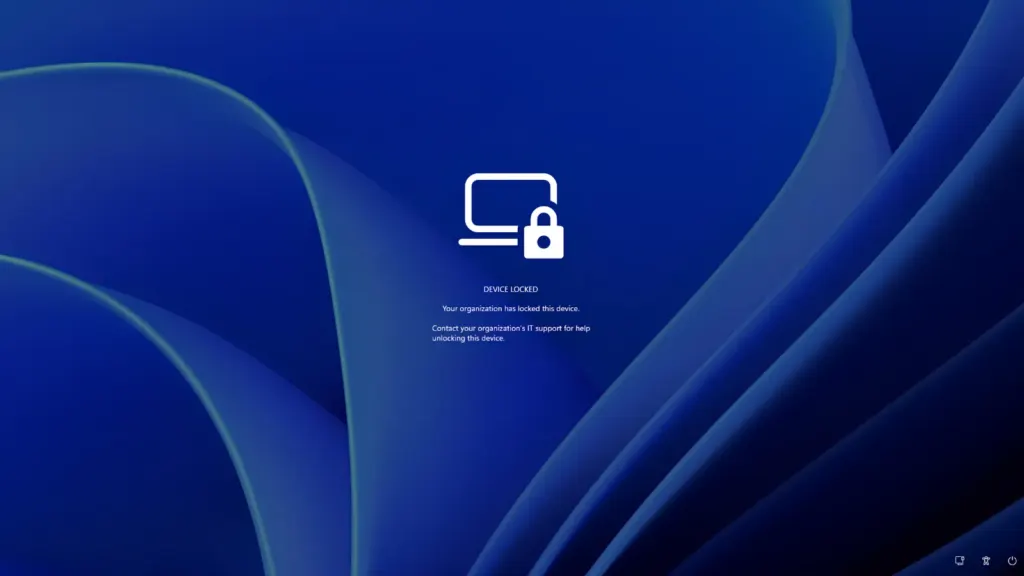
Microsoft has added a remote lock for Windows devices managed through Intune, giving IT admins a way to shut users and thieves out of a lost, stolen, or compromised PC without erasing it. The feature, documented as a preview on a Microsoft Learn page, signs out every active session, removes all sign-in options, and replaces the login screen with a lock notice.
The device stays enrolled and managed while locked, with BitLocker enabled and user data left in place, according to Microsoft’s documentation. The lock persists through restarts and while the PC is offline. Only an administrator can lift it, and once it is lifted, the user picks up where they left off.
Remote lock fills a long-standing hole in Intune. Microsoft’s documentation for the existing Remote lock device action lists Android, iOS/iPadOS, and macOS as supported platforms, and Windows is not among them. Admins with a missing Windows laptop have been left to choose between wiping it, disabling the user’s account, or relying on scripts.
How to turn on Remote Lock in Intune
In the preview, there is no one-click button. Remote lock is set via a custom OMA-URI profile, a configuration method that lets Intune write directly to a Windows management setting that doesn’t yet have a built-in toggle. Devices must be Microsoft Entra joined, hybrid joined, or MDM-enrolled, and must run Windows Enterprise, Education, or Pro.
Admins create the profile in the Intune admin center under Devices > Windows > Configuration > Create > New policy, selecting “Windows 10 and later,” then Templates > Custom. The required setting is ./Device/Vendor/MSFT/RemoteDeviceLock/LockState, an integer where 1 locks the device and 0 unlocks it.
Two optional string settings control what the person holding the device sees. ./Device/Vendor/MSFT/RemoteDeviceLock/LockReason replaces the default explanation with up to 1,024 characters of custom text, and ./Device/Vendor/MSFT/RemoteDeviceLock/RecoveryHint adds a help desk contact of up to 256 characters. A read-only node, ./Device/Vendor/MSFT/RemoteDeviceLock/Status, reports whether the device is unlocked (0), locked (1), waiting for the lock to apply (2) or in an error state (3).
Microsoft’s suggested workflow uses two profiles and two device groups. A “lock” profile with LockState set to 1 is assigned to a group reserved for locked devices, and adding a PC to that group locks it at its next check-in with Intune. Unlocking means moving the device into a second group that carries a profile with LockState set to 0.
That check-in dependency matters. A stolen laptop that never reconnects to the internet will not receive the lock, and a locked device that stays offline cannot be unlocked either.
What Remote Lock does not stop
By default, the lock screen displays the message “Your organization has locked this device” and directs users to IT support. No PIN, password, local administrator account, or web sign-in will get past it, and Microsoft says there is no offline or local unlock of any kind.
The lock does not extend below Windows, however. Microsoft’s documentation states that the Windows Recovery Environment (WinRE), Safe Mode, and booting from USB or other external media are not blocked. The company advises keeping BitLocker enabled so data stays protected if the drive is removed or the machine is reimaged. In practice, remote lock keeps people out of the Windows session, while disk encryption is still what keeps them out of the files.
The user’s account is also untouched. Credentials remain valid, and the person can still sign in on other devices, so an admin dealing with a compromised account, rather than a missing laptop, still needs to disable it or revoke sessions in Microsoft Entra ID. Remote lock does not cut the device off from the network or erase anything; Microsoft points to existing Intune controls for those jobs.
Microsoft’s page does not say which Windows builds include the feature, whether it needs a specific Intune license, or when it will leave preview. It also does not say whether Windows will be added to the existing Remote lock button in the Intune admin center, which would remove the need for custom profiles and group shuffling.

Community Discussion
Join the conversation. Ask questions, share solutions, and help others.
Be the first to start the discussion!