



Over time, I noticed my Windows PC was becoming slower, especially after installing and testing many Windows apps. Even after uninstalling some apps, my storage space kept shrinking, and performance didn’t fully improve. That’s when I realized that Windows applications leave behind cache files, temporary files, logs, and other data that quietly accumulate over time.
To solve this problem, I started using Advanced SystemCare 19, a PC cleaner and Windows optimization tool that safely and automatically removes hidden junk files. After using it regularly, I found it much easier to clean up stored and hidden junk, free up storage space, and improve overall system responsiveness. In this tutorial, I’ll show you how I use Advanced SystemCare 19 to deep-clean Windows junk in just a few simple steps.
Why I Started Cleaning My Windows Junk Files
At first, I underestimated how much clutter Windows apps could create. Even though these apps are convenient, many continue generating unnecessary data in the background.
The most common junk files I found included temporary cache files, update leftovers, log files, outdated installation files, and uninstallation remnants. Over time, these files consumed a surprising amount of disk space and started affecting my PC’s startup speed and responsiveness.
After reading about the Junk File Clean feature in Advanced SystemCare 19, I decided to test it myself. The software claimed it could fully clean outdated data created by Windows programs, automatically improving system speed and freeing up storage space.
My Step-by-Step Experience Cleaning Windows Programs’ Junk Files
Step 1. Installing and Opening Advanced SystemCare 19
First, I downloaded this Windows cleaner from the official website and installed it on my Windows PC. After launching the software, I immediately noticed the dashboard offered two main cleaning modes: AI Mode and Manual Mode.
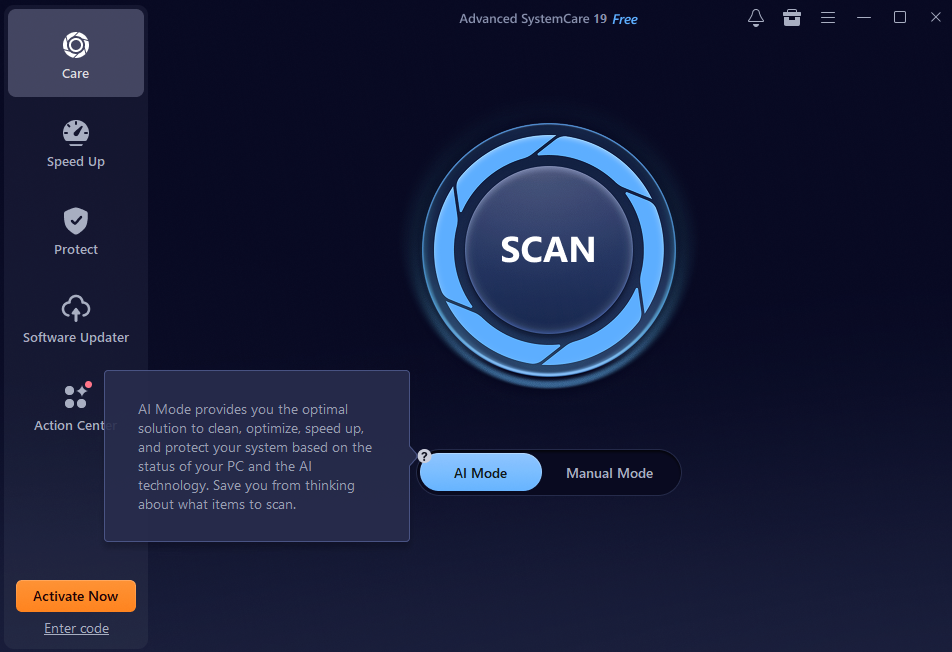
For deep cleaning Windows app junk files for the first time, I chose manual mode because it gives me more control over what gets scanned and cleaned. However, for regular maintenance, I usually use AI Mode because it automates everything intelligently. However.
Step 2. Using Junk File Clean in Manual Mode
Inside Manual Mode, I found several optimization and cleanup modules. To focus on all Windows junk files, I enabled all the checkboxes, including the Privacy Sweep, for additional cleanup.
What impressed me most was that the professional Junk File Clean feature in version 19 could detect junk created by multiple Windows applications much more thoroughly than the default Windows cleanup tools.

Step 3. Running the Scan
Once the scan started, Advanced SystemCare analyzed my system for multiple types of clutter, including: temporary app cache, installation leftovers, invalid shortcuts, useless registry entries, privacy traces, and old Microsoft Store app data. The scanning process felt surprisingly fast, and I could see the amount of reclaimable disk space updating in real time.

Step 4. Removing the Detected Junk Files
After the scan finished, the software displayed a detailed cleanup report showing all detected junk files and leftover data. Before cleaning, I carefully reviewed the results, then clicked the Fix button. Advanced SystemCare safely removed cache files, temporary files, outdated Microsoft Store data, registry clutter, and privacy traces.
I appreciated that the software focused only on unnecessary files rather than deleting important system data. After the cleanup finished, I immediately noticed extra free storage space and smoother system performance.

Step 5. The Cleanup Results I Noticed
Once the process was completed, the confirmation screen summarized everything that had been cleaned. On my older system, the difference was noticeable almost immediately. Startup speed improved, and applications opened more smoothly.
The Summary screen also showed the total number of junk files removed, disk space reclaimed, problems fixed, and privacy and security improvements. For ongoing maintenance, I enabled AutoCare, which now performs cleanup automatically in the background.

Why Advanced SystemCare 19 Stood Out for Me
Although I originally turned to Advanced SystemCare 19 mainly to remove persistent Windows apps’ junk files, I quickly realized that the software offers far more than a PC cleaner, particularly for performance and speed optimization.

The Startup Optimizer became an immediate asset, significantly reducing my boot times by disabling unnecessary startup programs that typically drag down system responsiveness. When I needed to push my hardware further during intensive gaming sessions or heavy multitasking, Turbo Boost proved invaluable by temporarily pausing non-essential background processes to channel raw power where it mattered most.
To cap it off, the Internet Booster delivered a highly noticeable upgrade to my daily workflow, accelerating web browsing and improving download speeds by optimizing my browser settings.

Beyond sheer speed, Advanced SystemCare 19 stood out for its robust, intuitive suite of privacy and security features. The Privacy Shield acted as a secure barrier, safeguarding my sensitive files and personal data from unauthorized third-party access. At the same time, the automated Anti-Spyware Protection continuously worked in the background to root out hidden spyware and adware threats.
My everyday online experience felt much cleaner and safer thanks to Browser Protection, which actively blocked intrusive ads, prevented frustrating homepage hijacking, and cleared away tracking traces.
Final Thoughts
Before using Advanced SystemCare 19, I didn’t realize how much hidden junk Windows programs were leaving behind on my system. Manually searching for cache folders and leftover files felt frustrating and incomplete.
After switching to Advanced SystemCare 19, cleaning junk files became much easier, faster, and safer. The software helped me recover storage space, improve system responsiveness, and reduce unnecessary clutter without requiring advanced technical skills. What I personally liked most was the combination of automatic cleanup, intelligent scanning, privacy protection, and performance optimization all in one place.
If your PC feels slower over time or your storage space keeps disappearing unexpectedly, Windows junk files could be a hidden cause. From my experience, regular deep cleaning with Advanced SystemCare 19 can make a noticeable difference in keeping Windows fast, clean, and responsive.


Community Discussion
Join the conversation. Ask questions, share solutions, and help others.
Be the first to start the discussion!