

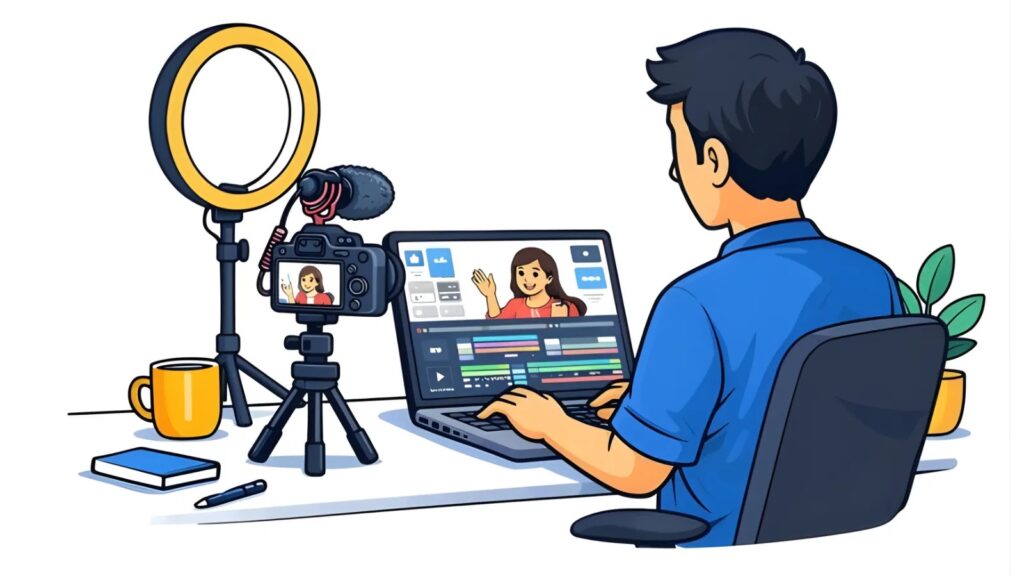
There’s a moment every content creator knows too well. You’ve shot a solid video. The idea is good, the lighting cooperated, and you even remembered to hold your phone horizontally. But now you need to trim the beginning, slap some subtitles on it, and get it compressed before you upload — and suddenly your laptop is groaning under the weight of software you downloaded three months ago and haven’t figured out yet.
Here’s something the internet doesn’t say clearly enough: you don’t need to install anything to edit videos decently. Browser-based video editing has quietly gotten very good, and for the majority of editing tasks most people actually need — cutting, compressing, adding subtitles, resizing for different platforms — you can do everything from a browser tab.
This guide walks you through exactly how.
Why Most People Are Overcomplicating Video Editing
The default advice for anyone asking “how do I edit videos” still points toward Premiere Pro, DaVinci Resolve, or Final Cut Pro. These are powerful tools — genuinely. But they were built for professional video production workflows. If you’re making content for Instagram, preparing a product demo, editing a class recording, or cutting together a travel reel, loading up a full NLE (non-linear editor) with a 12-track timeline is like hiring a head chef to make Maggi.
The actual tasks most people need to accomplish are far simpler:
- Trim dead air from the beginning and end
- Cut out the part where you said “umm” four times
- Add subtitles because most people watch with the sound off
- Compress the file before uploading or sharing
- Resize the aspect ratio for Reels vs. YouTube vs. LinkedIn
- Add text, music, or a watermark
Every single one of these can be done online, for free, without installing a thing.
What You Actually Need: A Good Browser-Based Video Editor
The key is finding a platform that handles all of these in one place instead of bouncing between five different tools. Clideo is one of the most capable options out there — it packs over 40 video tools (editor, subtitle generator, compressor, resizer, translator, and more) into a clean browser interface. You upload your file, make your edits, and download the result. No account needed for basic use, no plugin, no rendering queue that takes 45 minutes.
But beyond any single tool, let’s get into the actual techniques.
Step-by-Step: How to Edit Videos Online
1. Trim and Cut Your Footage
The first edit anyone needs to make is cutting the fat. Online editors let you drag handles on a timeline to set your in and out points. Most platforms also let you split the clip and delete specific sections from the middle — useful when you want to remove a segment without cutting the whole end off.
Practical tip: Always cut your intro tighter than feels comfortable. The first 3 seconds determine whether someone keeps watching or scrolls away. Whatever you think is “the start,” try cutting 5 more seconds from it.
2. Add Subtitles — This One Actually Matters
If you’re posting a video to Instagram, LinkedIn, or YouTube and you’re not using subtitles, you’re losing a significant chunk of your audience. Studies consistently show that 69–80% of people watch videos on mute in public spaces, and on social media specifically, the autoplay default is silent.
You have two ways to add subtitles online:
- Auto-generation — tools like Clideo’s subtitle generator transcribe your audio and place text automatically. Takes about 60 seconds for a 3-minute video. Review it for accuracy (names, technical terms, and regional accents sometimes get mangled), then export.
- Manual SRT upload — if you already have a transcript or you’re repurposing a video with a script, upload the SRT file directly and sync it.
Style your subtitles visibly. White text on a semi-transparent bar works everywhere. Avoid small fonts — people watch on phones.
3. Compress Your Video Before Uploading
This is the step everyone skips and then wonders why their upload is taking forever, or their website is loading slowly. A raw video from your phone can easily be 1–2 GB. For web use, you rarely need more than 100–200 MB for a standard 3-minute clip.
Online compression tools reduce file size by re-encoding the video at a lower bitrate. Quality loss at moderate compression is minimal — most viewers watching on a phone will not notice the difference between a 1 GB file and a 150 MB file of the same video.
When to compress: Always before uploading to a website, email, or Google Drive. For YouTube and Instagram, the platform recompresses anyway, so very large files are wasteful to upload in the first place.
4. Resize for the Right Platform
Same video, different platforms, different aspect ratios. Here’s a quick reference:
| Platform | Aspect Ratio | Format |
|---|---|---|
| Instagram Reels / TikTok | 9:16 | Vertical |
| YouTube | 16:9 | Horizontal |
| Instagram Feed (square) | 1:1 | Square |
| 16:9 or 1:1 | Either | |
| YouTube Shorts | 9:16 | Vertical |
Resizing online is simple — pick your target ratio, decide whether to crop or add blur bars on the sides, and export. Always export the full horizontal version first, then crop a vertical variant from it.
5. Add Music or a Voiceover
Background music changes the entire feel of a video. Most online editors let you either upload your own audio track or pick from a royalty-free library. Fade the music in and out at the start and end — abrupt audio cuts are the most noticeable rookie mistake in edited video.
For voiceovers, if you don’t want to record yourself, AI text-to-speech tools (Clideo has one built in) let you type a script and generate a voiced narration. Useful for product explainers and tutorial content.
Common Mistakes That Ruin Online-Edited Videos
Uploading massive files first, editing second. Always start by compressing your source file if it’s over 1 GB. Some online tools have upload size limits, and large files slow everything down unnecessarily.
Ignoring audio quality: You can fix most visual problems in an edit. You cannot fix bad audio. If your recording has heavy background noise, look for online audio cleanup tools before editing the video.
Using too many transitions: The swipe-cut and fade-to-black are enough for 95% of content. Spinning cube transitions are not making a comeback.
Not previewing subtitles on mobile: Subtitles that look fine on a desktop monitor often get cropped or covered by platform UI on phones. Always preview on the actual device your audience will use.
When to Stop Using Free Online Tools
Free browser-based editing covers most everyday needs, but there are situations where it shows its limits:
- Long-form content (30+ minute videos) — upload limits and processing time become an issue
- Color grading — serious correction still needs desktop software
- Multi-camera editing — syncing footage from multiple angles needs a proper timeline
- Heavy effects or motion graphics — After Effects territory, not browser tools
For everything else — the daily content creation grind of short videos, social clips, product demos, tutorials, and repurposed footage — browser-based editing handles it cleanly and saves you a significant amount of time.
The Practical Workflow for Content Creators
Here’s the lean workflow that works for most creators producing regular content:
- Shoot on phone or camera
- Transfer to the laptop
- Open browser editor (Clideo or equivalent)
- Trim the clip — remove dead air, cut the strongest version
- Add subtitles — auto-generate, review, style
- Compress — target under 150 MB for web use
- Resize — export platform-specific versions
- Upload — done
Total editing time for a 3-minute clip using this workflow: 15–20 minutes once you’re practiced. Compare that to the learning curve of professional software for the same output.
Final Thoughts
Online video editing isn’t a compromise — it’s a smarter choice for the kind of video work most people actually do. The tools have matured considerably, the output quality is more than good enough for web and social distribution, and the time saved by not wrestling with software is real.
Start with the task you’re stuck on right now — whether that’s compressing a file that won’t upload, adding subtitles to a recording, or cutting a 10-minute video into a 90-second reel. Pick a good online tool, run it once, and you’ll stop dreading video editing almost immediately.


Community Discussion
Join the conversation. Ask questions, share solutions, and help others.
Be the first to start the discussion!