

Let’s be real — not everyone is sitting on a brand-new gaming rig or a flagship Android phone. A huge chunk of users in India and across South Asia are running older machines: 2GB to 4GB RAM laptops, entry-level Android phones, machines that give up and crash the moment you open a tab too many. And yet, these are the same people who want to run Android apps on their PC, or squeeze out some Windows software on their Android devices.
This guide is for you. No fluff, no “just upgrade your hardware” nonsense. We tested emulators on machines that most tech writers wouldn’t even touch — and here’s what actually works in 2026.
Part 1: Best Android Emulators for Low-End PCs (2026)
Before jumping into the list, a quick note: most mainstream emulators will ask for 4–8 GB RAM, VT (Virtualization Technology) support, and a discrete GPU. If your machine doesn’t fit that profile, don’t worry — there are options built precisely for that.
1. MuMu Nebula — Best Overall for Ultra-Low-End PCs
If your laptop is “held together by hope and thermal paste” (we’ve all been there), MuMu Nebula is the one to try first.
MuMu Nebula doesn’t require VT or a dedicated GPU, bypassing the “Enable VT” error that blocks most other emulators on low-end machines entirely. That alone makes it stand out in a crowded field. The 2026 update brought Android 12 support, and its startup time is genuinely fast — around 3 seconds on a mid-range SSD.
It also uses about 52% less memory than most competing emulators, according to 2026 benchmarks.
Minimum Specs: 2GB RAM, dual-core CPU, no GPU needed
Android Version: Android 12
Best For: Students, casual users, productivity apps on old hardware
The catch? It doesn’t score as high on benchmark tests as premium emulators. But here’s the thing — if the premium emulator won’t even launch on your machine, those benchmarks don’t mean anything.
2. LDPlayer 9 — Best for Gaming on Budget Hardware
LDPlayer has been a community favourite for years, and the version 9 release tightened things up considerably.
Unlike many emulators optimized for high-end PCs, LDPlayer is specifically designed for low-end computers, running Android 9, 10, and 11 without eating up excessive CPU or GPU resources. It also includes a game booster mode that improves frame rates for smoother gameplay.
What makes it genuinely useful for gamers on a budget is the custom key mapping — you can map your keyboard to on-screen controls without any third-party tools. If you’re playing BGMI, Free Fire, or even Clash Royale, this matters.
Minimum Specs: 2GB RAM (4GB recommended), dual-core processor
Android Version: Android 9 / 11
Best For: Mobile gaming, MOBA and battle royale titles
Pro tip: Drop the resolution inside LDPlayer to 1280×720 and cap FPS at 30 if you’re on 2GB RAM. It makes a noticeable difference.
3. NoxPlayer Lite — Most Features Without the Weight
NoxPlayer Lite works without VT enabled, but if you can turn it on in your BIOS settings (look for “Intel VT-x” or “AMD-V”), performance improves significantly. It supports multiple Android versions — 5, 7, and 9 — making it the only emulator that lets you drop down to Android 5 if your machine is really struggling. It also starts up in about 6 seconds.
This matters more than it sounds. Android 5 and 7 are genuinely lighter on resources, and if you’re running a 2012-era laptop, the difference between Android 9 and Android 5 can be the difference between usable and unusable.
Minimum Specs: 2GB RAM, basic GPU (DirectX 9)
Android Version: 5 / 7 / 9 (your choice)
Best For: Users with very old hardware who need flexibility
4. BlueStacks 5 (Eco Mode) — Best App Compatibility, Heavier Footprint
BlueStacks doesn’t belong on the “lightest” list, but it deserves a mention because of its sheer app and game library.
BlueStacks is designed to scale based on available resources, dynamically adjusting how processing power is allocated during gameplay rather than consuming maximum CPU at all times. The Eco Mode feature is particularly helpful: it reduces the FPS of background instances, cutting CPU usage by up to 87%, and with a single click it can free up extra RAM for Windows to run more smoothly alongside the emulator.
BlueStacks gives access to over 2 million games, making it the largest library among emulators in this category.
Minimum Specs: 4GB RAM (2GB works, but just barely), VT required
Android Version: Android 11
Best For: Users on 4GB RAM who want the widest app/game support
5. GameLoop — Best for Tencent Games (BGMI, CoD Mobile, Free Fire)
GameLoop stands out by eliminating the need for VT, which many low-end PCs lack in BIOS. Its AOW engine delivers faster speeds and better graphics, and its anti-cheat systems ensure fair gameplay in titles like PUBG Mobile and Arena of Valor.
If you primarily play Tencent-published games, this is the official emulator for those titles, and it shows. The optimization is noticeably better than running those same games on a general-purpose emulator.
Minimum Specs: 4GB RAM, Intel/AMD dual-core
Android Version: Android 7.1
Best For: BGMI, CoD Mobile, Free Fire Max players
6. MEmu Play — Best for Multitasking and Developers
MEmu lets you emulate Android on almost any Windows-based PC with solid performance, supports up to 240fps without overloading system resources, and offers full-screen and smartphone-screen modes alongside engine tweaks for performance tuning. It’s also compatible with both Intel and AMD processors.
Minimum Specs: 2GB RAM, Intel/AMD dual-core
Android Version: Android 7, 9, 11
Best For: Developers, testers, multi-app multitaskers
Quick Comparison: Which One Is Right for You?
| Emulator | Min RAM | VT Required? | Android Version | Best Use |
|---|---|---|---|---|
| MuMu Nebula | 2GB | No | Android 12 | Ultra-low-end PCs |
| LDPlayer 9 | 2GB | Recommended | Android 9/11 | Gaming |
| NoxPlayer Lite | 2GB | Optional | Android 5/7/9 | Old hardware |
| BlueStacks 5 | 4GB | Yes | Android 11 | App library |
| GameLoop | 4GB | No | Android 7.1 | Tencent games |
| MEmu Play | 2GB | Recommended | Android 7/9/11 | Dev & multitasking |
Part 2: How to Run Windows Apps on Android (2026 Guide)
This is where things get interesting — and a little technical. Running actual Windows .exe files on Android isn’t science fiction anymore. It’s messy, imperfect, and requires some patience, but it works.
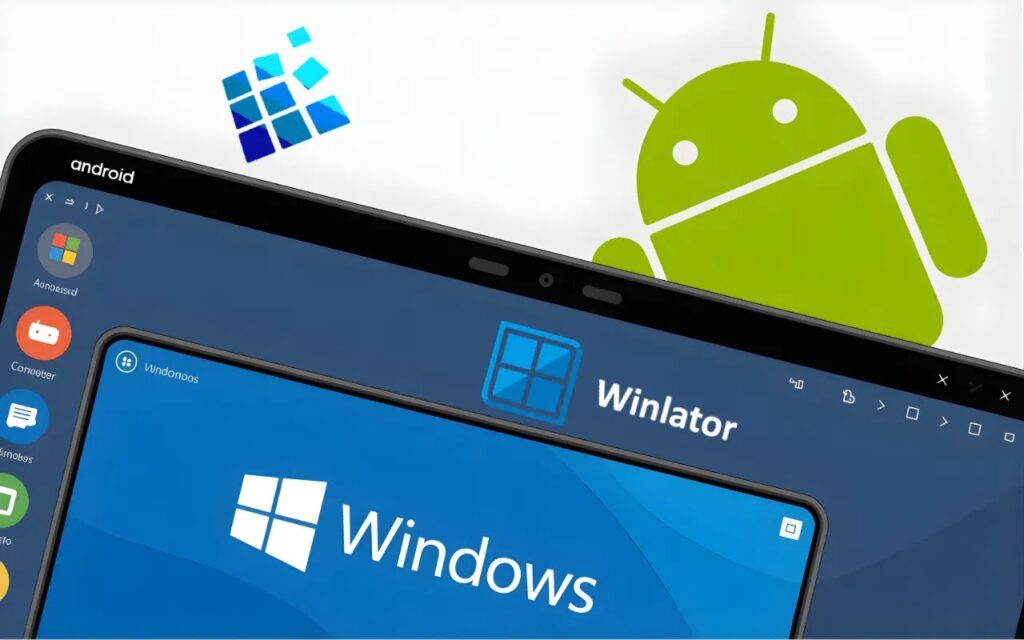
The tools doing the heavy lifting here are ExaGear and Winlator.
1. ExaGear: The OG Windows Emulator for Android
ExaGear: Windows Emulator is a Windows emulator for Android that allows you to run Win32 apps and games on Android devices with ARM processors. It doesn’t fully emulate Windows; instead, it uses a translation layer to interpret x86 instructions and execute them on ARM processors — which means better performance than a full virtual machine.
It skips the full Windows emulation and focuses solely on translating x86 instructions into ARM-compatible code, helping it stay snappy even on mid-tier phones.
What can you actually run on ExaGear? Compatible games include classics like Half-Life, Diablo II, Fallout 2, and Age of Empires II. On the apps side, you can run Office, GIMP, VLC, Winamp, and AIMP. Tools like 7-Zip and IrfanView come pre-included, and other programs can be installed by running their .exe installer.
Important limitation: ExaGear only supports x86 (32-bit) emulation. For 64-bit apps, you’ll need to look at alternatives like Winlator, Box64Droid, or MoBox.
Another thing to know: The original developers stopped updates, but community-driven versions — including ExaGear Gold and various modded builds like the XEGW mod — continue improving compatibility and performance. You’ll find the most active development on GitHub, where contributors like the XHYN-PH and Ajay mod teams regularly push updates.
Setting Up ExaGear — Step by Step
- Download ExaGear from a trusted source (Uptodown or GitHub community builds)
- Install the APK, grant storage and other requested permissions
- Open ExaGear — it launches a Wine-based container environment
- From the Start Menu inside ExaGear, install any required renderers (VirGL for Mali GPUs, Turnip for Snapdragon)
- Download the
.exeinstaller for any Windows app you want to run - Run the installer from within the ExaGear container — it installs like on a regular Windows PC
- Launch the app from the ExaGear Start Menu
For best results: Match the container resolution to the game’s recommended resolution (e.g., 1280×720). Use Wine 4 for older DirectDraw games. Install VC Redist and DirectX from within the container for better game compatibility.
2. Winlator: The Better Option for 3D Games
If ExaGear is the old guard, Winlator is the new blood — and for 3D games in particular, it’s miles ahead.
Winlator blew away expectations with its simple UI and ease of installation — unlike other emulators in this space, all you need to do is install a single APK file, and you’re good to go. Setting up containers is a relatively painless process, and on-screen controls or physical gamepads take minimal effort to configure.
On a mid-range Snapdragon 7+ Gen 2 device, 2D titles like Hollow Knight and Slay the Princess ran consistently above 30FPS. 3D titles including F.E.A.R., Dead Space (2008), Fallout 3, and Bloodstained: Ritual of the Night ran at nearly 60FPS at medium settings with reduced resolution.
Setting up Winlator:
- Download the latest Winlator APK from the official site (winlator.com) or GitHub
- Install and open the app — it will initialize the Wine/Box86/Box64 environment
- Tap the “+” icon to create a new container
- Set resolution (640×360 for retro games, 800×600 to 1280×720 for modern titles)
- Select your GPU driver — Turnip for Snapdragon devices, VirGL for others
- Allocate video memory based on your device’s RAM
- Copy your game files into the container and launch the
.exe
Important note: Winlator performs significantly better on Snapdragon processors than on Dimensity or Exynos chips. If you’re on a MediaTek device, manage expectations accordingly.
ExaGear vs. Winlator: Which One Should You Use?
| Feature | ExaGear | Winlator |
|---|---|---|
| Architecture | 32-bit (x86) only | 32-bit and 64-bit (x86 + x64) |
| Best for | Old classic games, light Windows apps | Modern PC games, 3D titles |
| Difficulty | Easier setup | Slightly more setup required |
| Active development | Community mods only | Actively maintained |
| GPU support | VirGL (OpenGL) | Turnip (Vulkan), VirGL |
| Recommended device | Any Android 7+ (ARM) | Snapdragon preferred |
Our verdict: Use ExaGear for productivity apps and classic 32-bit games (Age of Empires II, Diablo II, older Office). Use Winlator for anything 3D, modern, or 64-bit.
Tips to Squeeze Out Better Performance on Any Emulator
Whether you’re running an Android emulator on a low-end PC, or trying to run Windows apps on an Android device, these tweaks apply across the board:
- Close all background apps before launching any emulator. On a 2GB machine, every MB counts.
- Enable Virtualization in BIOS if your CPU supports it (Intel VT-x or AMD-V) — this unlocks hardware-level acceleration.
- Lower resolution and FPS caps inside the emulator rather than relying on default settings. Most emulators default to your screen’s native resolution, which is often overkill.
- Set emulator process priority to High via Task Manager (Windows) for smoother performance.
- Disable Windows visual effects — go to System Properties → Advanced → Performance Settings → “Adjust for best performance.”
- Use an SSD if possible. Even a cheap 120GB SSD dramatically cuts load times in emulators.
The Bottom Line
Running Android apps on a low-end PC or Windows software on Android isn’t the pipe dream it was even two or three years ago. The tools available in 2026 are genuinely good — and some of them, like MuMu Nebula and Winlator, are better than anything we had even in 2023.
For Android emulation on a low-end PC: Start with MuMu Nebula if you have no VT support. Move to LDPlayer 9 if gaming is the priority. BlueStacks Eco Mode if you want the widest app library and have at least 4GB RAM.
For running Windows apps on Android: ExaGear is still the go-to for classic 32-bit games and legacy productivity tools. Winlator is the better pick for anything newer, 3D, or 64-bit.
Neither path requires you to spend money on a hardware upgrade. That’s kind of the whole point.
Got a specific emulator you think deserves a mention, or a low-end device setup that’s working surprisingly well? Drop it in the comments below. 😇


Community Discussion
Join the conversation. Ask questions, share solutions, and help others.
Be the first to start the discussion!