

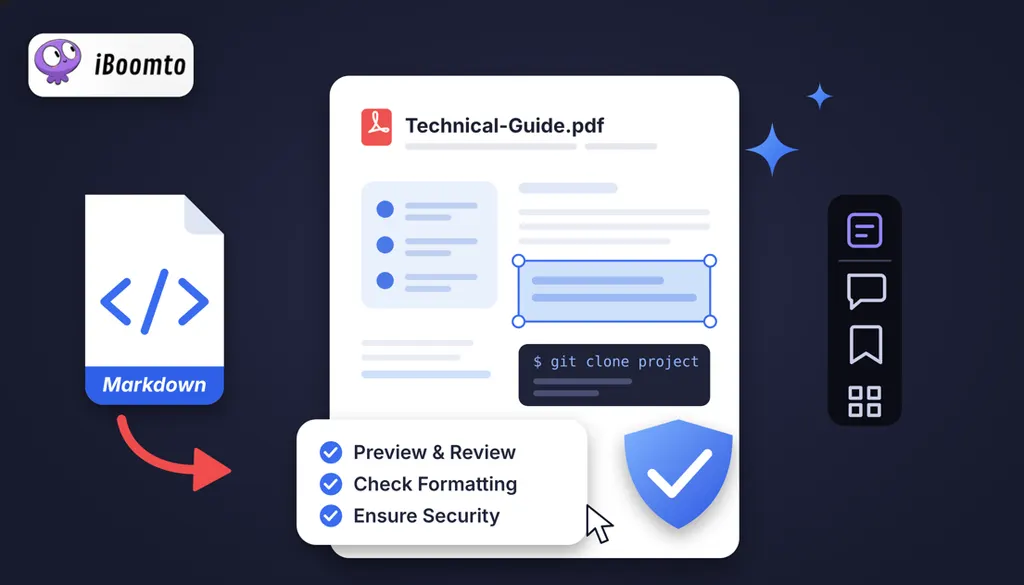
A Markdown file that looks clean in your editor can still produce a messy PDF. A heading ends up alone at the bottom of a page, a link stops working, a long command runs off the edge, or a wide table gets cut off. Readers notice these problems right away, and in technical documents they can also lead to mistakes.
This article gives you a simple review checklist for the four things that break most often: headings, links, code blocks, and page breaks. It also covers how to check your source material before you write and the final PDF before you share it.
Review the Source Material First, and the Final PDF Last
Technical documents are rarely written from scratch. You may be working from product specifications, older manuals, research notes, or long PDF references. Before you format anything, make sure the facts you are about to publish are right.
Skim the source for the details that readers will act on: version numbers, command names, setting values, system requirements, and security warnings. Write them down in one place so you can check them again at the end.
Tools such as the iBoomto AI PDF summarizer can be considered when working with longer PDF files and extracting their main points for review.
A summary is only a starting point. Compare it with the original before you use it, especially for version numbers, configuration requirements, and security instructions, because one missing detail can send a reader in the wrong direction.
Do the same comparison at the end. Once the PDF is exported, check the details you wrote down against the final file to confirm that nothing was changed or lost along the way. The sections below cover the formatting checks.
Check Headings
Headings are how readers scan a technical document, so they need to be consistent. Check three things:
- One main title. The document should have a single top-level heading (#), and everything else should sit below it.
- No skipped levels. A ## section should be followed by ### subsections, not #### ones.
- Clear, specific wording. “Installing on Windows” tells readers more than “Next steps.”
Also check the order. Requirements should come before installation, and troubleshooting should come after the steps it relates to. An installation guide often works well in this order: Introduction, System Requirements, Installation, Configuration, Troubleshooting, and Additional Resources.
Here is a common mistake. The last heading below skips two levels, which makes the structure unclear:
# Installation Guide
## System Requirements
#### Download the installer
Changing the last line to ### keeps the outline clean. A consistent heading structure also makes it easy to add a table of contents if the document grows.
Check Links
A broken link can stop a reader in the middle of a task. Test every link in the Markdown file before you export:
- External links: Download pages, official documentation, and API references. Make sure each one opens the right page.
- Links between sections: A reference such as “see Troubleshooting” should point to a section that still exists under that name.
- Link text: Use a short label such as “Installation Guide” instead of a long raw URL, so readers know where the link goes.
After you export, click a few links in the PDF itself. A link that works in your editor should still be clickable in the final file. If the document may be printed, also write the address in plain text next to the most important links, because a printed page cannot be clicked.
Check Code Blocks
Readers copy commands from technical documents and run them, so a small change can cause real problems. Look at every code block in the PDF and check:
- Indentation: Spaces should be preserved, especially in code where indentation has meaning.
- Long lines: Commands should not be cut off at the edge of the page. The whole line should stay readable.
- Special characters: Quotes, dashes, and brackets should look the way you typed them. A double hyphen in a command should not turn into a different character.
- Copying: Copy a command from the PDF and paste it into a terminal or text editor to confirm it still works.
Short blocks are easier to check and easier to follow. Start with one sentence that explains what the command does, then show it:
git clone https://example.com/project.git
cd project
If an example is long, split it into smaller blocks with a sentence between them that explains each part.
Check Page Breaks and Layout
A Markdown file has no pages, but a PDF does. Scroll through the exported file from the first page to the last and look for these problems:
- Stranded headings: A heading at the bottom of a page while its text starts on the next.
- Split code blocks: A command or example broken across two pages in a way that makes it hard to follow.
- Wide tables: Columns that run past the margin or become too small to read. If a table has many columns, consider splitting it in two.
- Separated warnings: A note or warning that ends up on a different page from the step it refers to.
Also glance at margins, page numbers, and spacing. For longer documents, view the PDF at a smaller zoom level to see several pages at once, which makes layout problems easier to spot.
When you find a problem, fix it in the Markdown file and export again. Do not patch the PDF by hand, or the fix will be lost the next time you update the document.
Export the Markdown File into PDF
Once the Markdown file passes these checks, it is ready to export.
Using a dedicated Markdown to PDF converter provides a straightforward way to convert Markdown content into a PDF file. This is useful when technical documentation needs to be shared with people who may not have a Markdown editor or development environment.
A PDF keeps the layout consistent across devices and is easy to send by email, post on project management platforms, or store in a company knowledge base.
Do not assume the export is perfect. Open the PDF and run through the four checks again in this order: headings, links, code blocks, and page breaks. It usually takes only a few minutes and catches problems that only appear after conversion.
Final Checklist Before Distribution
Before you send the document, go through this list:
- The title is clear and says what the document covers.
- Headings use one top-level title and no skipped levels.
- Every link opens the correct page, both in the PDF and in the editor.
- Code blocks keep their indentation, and commands work when copied.
- Tables and examples fit on the page.
- No heading or code block is split awkwardly across pages.
- Version numbers, settings, and security notes match the source material.
Keep this list with your project so the same review is repeated every time the document is updated.
Conclusion
Most PDF problems in technical documents come from four places: headings, links, code blocks, and page breaks. Checking them one at a time, after the source material is verified and again after export, takes little time and prevents most of the mistakes readers would otherwise run into.
A consistent review process, supported by practical document tools, helps ensure that technical PDFs remain useful, clear, and reliable for the people who depend on them.



Community Discussion
Join the conversation. Ask questions, share solutions, and help others.
Be the first to start the discussion!